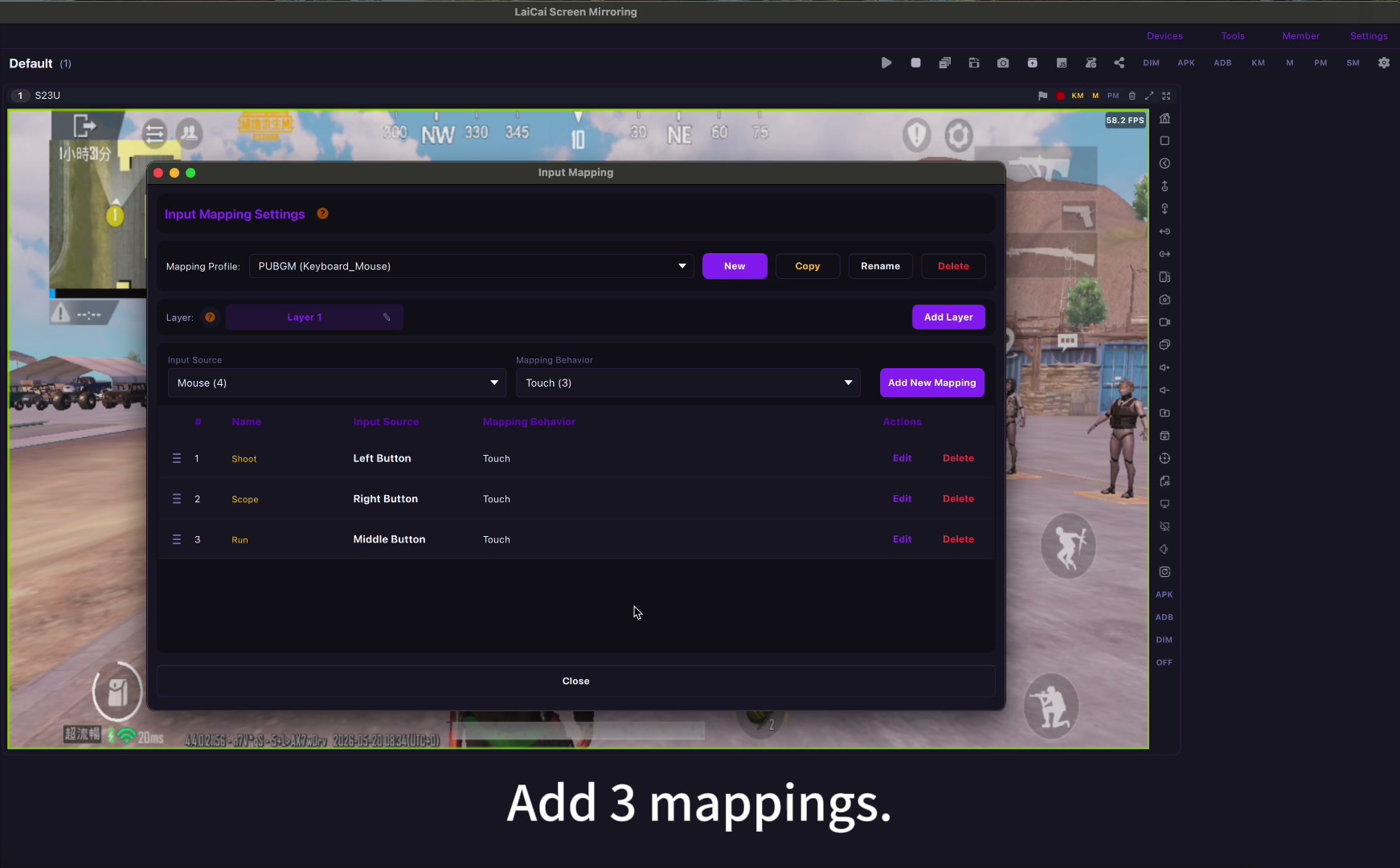
Battlegrounds Mobile India (BGMI) is built for phones, but long sessions on a small screen are tiring, and many players want the comfort of a monitor, a keyboard, and a mouse. Most guides answer this with an Android emulator. This guide covers a different route: keep BGMI running on your own Android phone, mirror the phone to your Windows PC or Mac with LaiCai Screen Mirroring, and control it with keyboard and mouse.
Before the steps, there is one section you should not skip. BGMI has strict rules about third-party programs and devices, and Krafton has not said how it treats this kind of setup. Read the rules section first, then decide whether this setup fits the way you play.
Can You Play BGMI on PC?
There is no official BGMI client for Windows or macOS. Krafton publishes BGMI for Android and iOS, and it has said it has no plans to release an emulator version because of cheating concerns. That leaves two practical ways to put BGMI on a bigger screen:
- An Android emulator such as BlueStacks or GameLoop installs BGMI inside a virtual Android system on the PC.
- Screen mirroring your phone keeps BGMI installed and running on your real phone. The PC only shows the phone screen and sends your keyboard and mouse input to it.
This guide is about the second route. If you want the broader picture for other titles, see how to play Android games on PC with your phone.
Read This Before You Start: BGMI Rules and Ban Risk
BGMI’s code of conduct lists the use, development, advertising, trading, or distribution of unauthorized programs or hardware devices as a permanent-ban offence, and Krafton has also introduced device bans for cheating. BGMI esports events do not allow players to compete from PC emulators.
Krafton has not published any statement about mirroring a real phone to a computer with keyboard and mouse mapping. That means nobody, including us, can promise how BGMI’s systems will classify it. Here is what that means in practice:
- Do not use this setup in tournaments, scrims, or any event that requires a phone-only setup.
- Do not use macros, scripts, recoil control, or anything that plays or aims for you. In BGMI, stick to simple mappings where each key does what your finger would do, and leave LaiCai’s macro and multi-step mappings switched off.
- If you play ranked matches on an account you care about, decide for yourself whether the risk is acceptable, and check BGMI’s latest official notices first.
- Training ground practice, casual matches, and recording your own gameplay are the lowest-risk uses.
Emulator vs. Mirroring Your Own Phone
Both routes give you a bigger screen and keyboard controls, but they work very differently.
| Android emulator | Mirroring your phone with LaiCai | |
|---|---|---|
| Where BGMI runs | A virtual Android system on the PC | Your real Android phone |
| What the PC needs | Enough CPU, RAM, and graphics power to run the game | Enough to display the phone screen; the phone does the gaming work |
| Account and game data | A second install that you sign in to again | The same install, settings, and HUD you already use on the phone |
| Matchmaking | Media reports say emulator players are matched with other emulator players | Krafton has not published how this setup is treated |
| Tournaments | Not allowed | Use only where event rules allow it |
Mirroring makes sense if your PC is not a gaming machine, if you want to keep playing on the phone you already set up, or if you record BGMI content and want the footage to come from the real phone version.
How to Set Up BGMI on PC with Your Phone
Want to skip the setup? BGMI is the Indian version of PUBG Mobile and its controls are very close, so you can start from the ready-made PUBG Mobile key mapping profile in the LaiCai community. Load it, then move every mapping point onto your own BGMI buttons, because button positions depend on your HUD and phone screen.
- Install LaiCai Screen Mirroring on your Windows PC or Mac, and make sure BGMI is installed and updated on your Android phone.
- Connect the phone with a USB data cable. Turn on USB debugging in the phone’s developer options and approve the computer when the phone asks. The Android connection guide covers this step by step.
- Open the mirrored screen in LaiCai and launch BGMI on the phone. Keep the phone in landscape.
- Open key mapping and drag keys onto BGMI’s buttons: a movement stick for WASD, mouse look for the camera, then fire, scope, and the actions you use most.
- Test in the training ground. Walk, sprint, aim, fire, reload, and open the backpack and map before you go into a real match.
- Save the profile so you can load it again next time. If you change your BGMI HUD later, adjust the matching keys.
For each mapping type in detail, see the custom Android game key mapping guide.
A Starter BGMI Keyboard and Mouse Layout
Most PC players feel at home with a layout close to this one. Treat it as a starting point and change anything that does not suit your hands.
| Action | Suggested key |
|---|---|
| Move | W / A / S / D |
| Look around | Mouse movement |
| Fire | Left mouse button |
| Aim / scope | Right mouse button |
| Sprint | Shift |
| Jump / crouch / prone | Space / C / Z |
| Reload | R |
| Switch weapons | 1 / 2 / 3 |
| Backpack / map | Tab / M |
| Heal / throwable | H / G |
| Interact (doors, pick up, vehicles) | F |
| Free the mouse cursor | Esc |
BGMI players use many different claw layouts, so do not copy a layout blindly. Because LaiCai places keys directly over the phone screen, the right profile is the one that matches the buttons on your HUD.
Make It Feel Smooth: Connection, Sensitivity, and Heat
Use USB for matches. A cable gives steadier latency than a busy Wi-Fi network. Wi-Fi is fine for menus and casual play, but aiming feels better on USB. The comparison of USB vs Wi-Fi Android screen mirroring explains why.
Tune mouse look in small steps. If the camera turns too fast, lower the mouse sensitivity in LaiCai first. Then check scopes one by one in the training ground, because a setting that feels right with a red dot can feel wrong with a 4x scope.
Watch phone temperature. BGMI, mirroring, and recording together put load on the phone. Keep it charging on a stand or cooler, and close background apps. If the mirrored picture stutters, lower the mirroring resolution or bitrate before changing your controls. More fixes are in reduce Android screen mirroring lag.
Record from the real phone. If you make BGMI videos, mirroring lets you capture the phone version your viewers play. See record Android gameplay on PC for a recording workflow.
FAQ
Can I play BGMI on PC without an emulator?
Yes. Keep BGMI on your Android phone and mirror the phone to your computer with LaiCai Screen Mirroring. The game still runs on the phone; the computer shows the screen and sends your keyboard and mouse input.
Will I get banned for using keyboard and mouse in BGMI?
We cannot promise either way. BGMI’s rules ban unauthorized programs and hardware devices, and Krafton has not said how it treats phone mirroring with key mapping. Avoid tournaments, never use macros or scripts, and decide for yourself before using it on an account you care about.
Do I need a gaming PC?
No. With mirroring, your phone runs BGMI. The computer only needs to display the mirrored screen smoothly.
Does this work on a Mac or a laptop?
Yes. LaiCai Screen Mirroring runs on Windows and macOS, including laptops.
Can I use the same setup for PUBG Mobile?
Yes. The steps are the same; see how to play PUBG Mobile on PC with a real Android phone.
Official BGMI Sources
Battlegrounds Mobile India official website; BGMI on Google Play; BGMI on the App Store.