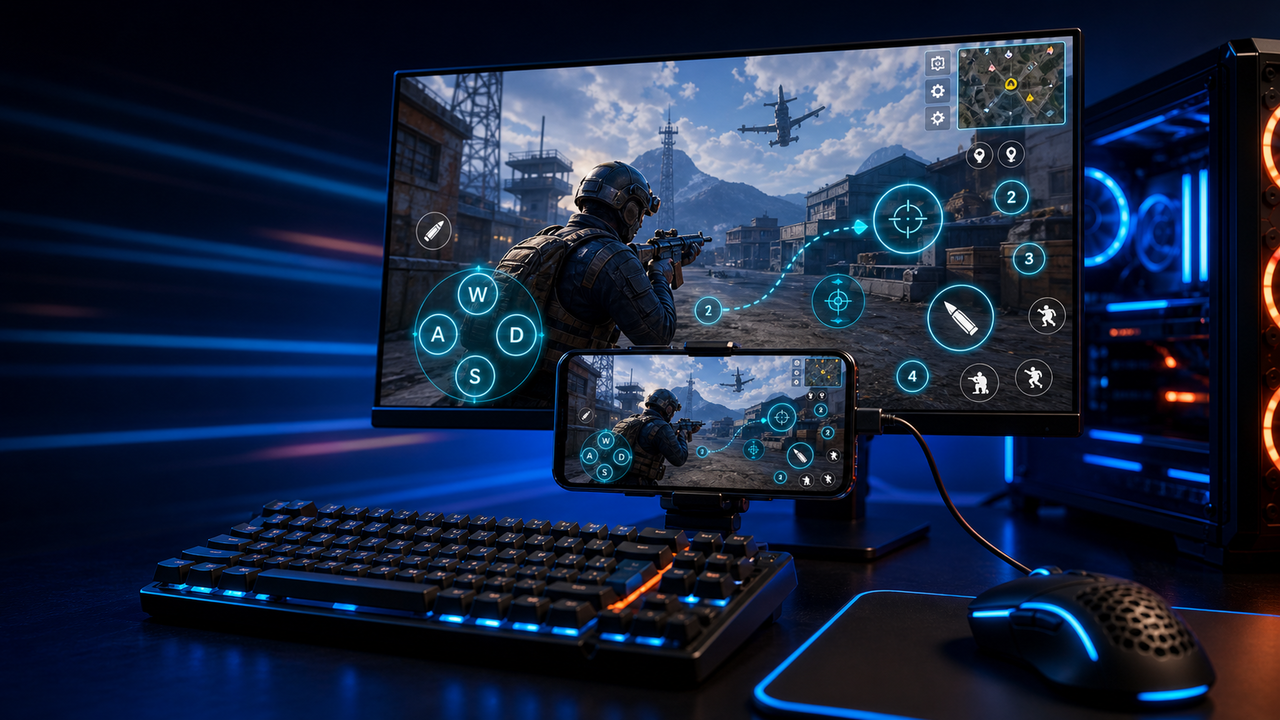
Keyboard and mouse key mapping
Turn touch controls into a PC-style layout for movement, aiming, firing, skills, camera, backpack, and common game actions.
Mobile games on PC, powered by Android devices and emulators
Mirror Android devices and emulators to Windows or macOS, then use keyboard, mouse, gamepad, and custom key mapping for supported mobile game workflows.
LaiCai
A larger screen, physical controls, and custom layouts can make long sessions more comfortable while PUBG Mobile, Free Fire, COD Mobile, Mobile Legends, Roblox, and other games run on Android devices or emulators.
手順
Connect your phone, open the game, then tune the controls for your own play style.
Install LaiCai Screen Mirroring on your Windows PC or Mac.
Connect the Android phone by USB or a supported Wi-Fi workflow.
Open PUBG Mobile, Free Fire, COD Mobile, Mobile Legends, Roblox, or another supported game on the phone.
Mirror the phone screen to the computer workspace.
Drag key-mapping controls onto movement, camera, fire, backpack, skill, and action areas.
Test the layout, adjust sensitivity, then save the mapping for the next session.
ワークフロー
Turn touch controls into a PC-style layout for movement, aiming, firing, skills, camera, backpack, and common game actions.
The game keeps running on your Android device or emulator while LaiCai Screen Mirroring gives you a larger PC or Mac display for daily play and tutorials.
Capture screenshots, record short clips, and keep reusable control layouts for PUBG Mobile, Free Fire, COD Mobile, Mobile Legends, and Roblox.
比較
仮想 Android 環境や多くのゲームに適しています。
ワークフローを実際の電話機に留める必要がある場合は、LaiCai の方が優れています。軽量のミラーを必要とする技術ユーザーに適しています。
LaiCai は、ビジュアルな製品ワークフロー、キー マッピング、録音、およびデバイス グループを追加します。デバイスがローカルである必要がない場合に適しています。
LaiCai は、PC または Mac から制御されるローカルの実際の Android スマートフォンに焦点を当てています。よくある質問
LaiCai Screen Mirroring is useful for players who want computer controls for Android devices and supported emulators.
はい。LaiCaiはWindowsとmacOSに対応しています。
対応するAndroidゲームのワークフローでは、実機上でゲームを動かしたままキーマッピングを使えます。
はい。キーボード、マウス、コントローラーのレイアウトを設定できます。
はい。LaiCaiは端末グループと複数端末ワークフローを備えています。
LaiCai Screen Mirroring is useful for players who want computer controls for Android devices and supported emulators.