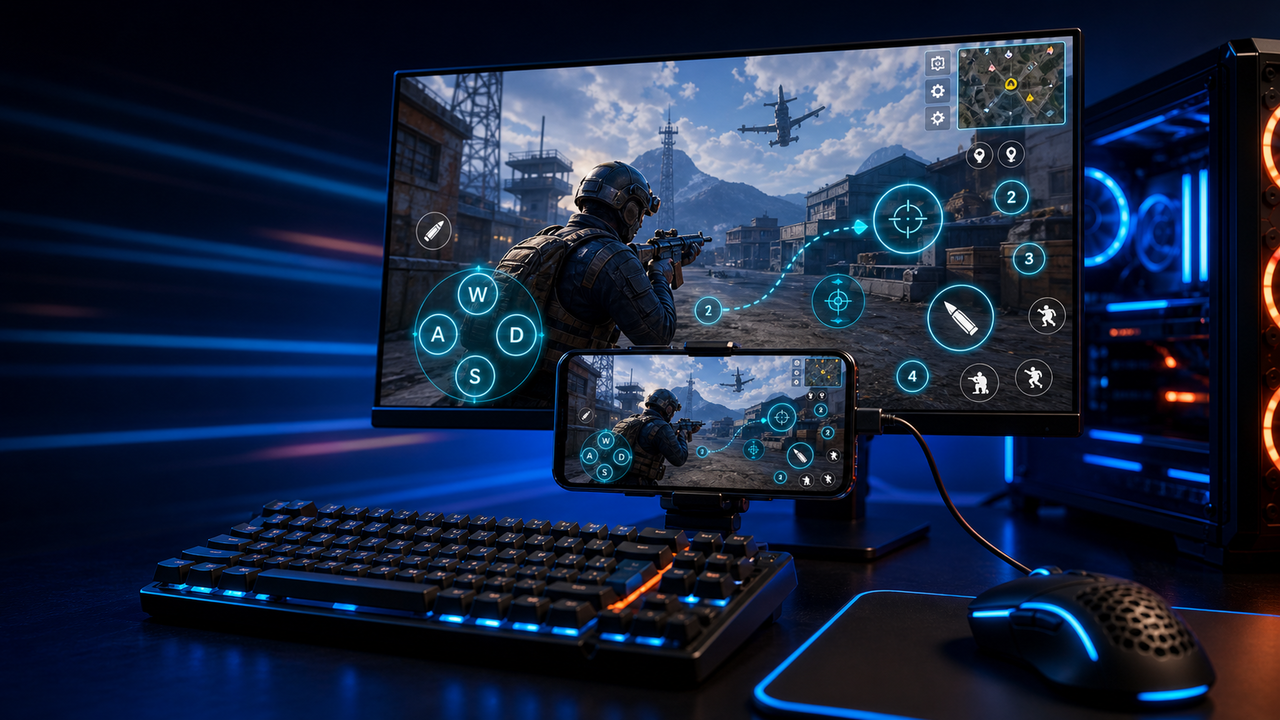
Keyboard and mouse key mapping
Turn touch controls into a PC-style layout for movement, aiming, firing, skills, camera, backpack, and common game actions.
Mobile games on PC, powered by Android devices and emulators
Mirror Android devices and emulators to Windows or macOS, then use keyboard, mouse, gamepad, and custom key mapping for supported mobile game workflows.
LaiCai
A larger screen, physical controls, and custom layouts can make long sessions more comfortable while PUBG Mobile, Free Fire, COD Mobile, Mobile Legends, Roblox, and other games run on Android devices or emulators.
설정 단계
Connect your phone, open the game, then tune the controls for your own play style.
Install LaiCai Screen Mirroring on your Windows PC or Mac.
Connect the Android phone by USB or a supported Wi-Fi workflow.
Open PUBG Mobile, Free Fire, COD Mobile, Mobile Legends, Roblox, or another supported game on the phone.
Mirror the phone screen to the computer workspace.
Drag key-mapping controls onto movement, camera, fire, backpack, skill, and action areas.
Test the layout, adjust sensitivity, then save the mapping for the next session.
작업 흐름
Turn touch controls into a PC-style layout for movement, aiming, firing, skills, camera, backpack, and common game actions.
The game keeps running on your Android device or emulator while LaiCai Screen Mirroring gives you a larger PC or Mac display for daily play and tutorials.
Capture screenshots, record short clips, and keep reusable control layouts for PUBG Mobile, Free Fire, COD Mobile, Mobile Legends, and Roblox.
비교
가상 안드로이드 환경과 다양한 게임에 적합합니다.
해당 환경에 데스크톱 제어, 키 매핑, 녹화 또는 다중 대상 작업이 필요할 때 LaiCai를 함께 사용할 수 있습니다.가벼운 미러를 원하는 기술 사용자에게 적합합니다.
LaiCai는 시각적 제품 작업 흐름, 키 매핑, 녹음 및 장치 그룹을 추가합니다.장치가 로컬일 필요가 없을 때 좋습니다.
LaiCai는 PC 또는 Mac에서 제어되는 로컬 Android 기기와 에뮬레이터에 중점을 둡니다.FAQ
LaiCai Screen Mirroring is useful for players who want computer controls for Android devices and supported emulators.
네. LaiCai는 Windows와 macOS를 지원합니다.
지원되는 Android 게임 작업에서는 Android 기기 또는 지원되는 에뮬레이터에서 게임을 실행한 채 키 매핑을 사용할 수 있습니다.
네. 키보드, 마우스, 컨트롤러 매핑 레이아웃을 설정할 수 있습니다.
네. LaiCai는 기기 그룹과 다중 폰 작업 흐름을 지원합니다.
LaiCai Screen Mirroring is useful for players who want computer controls for Android devices and supported emulators.