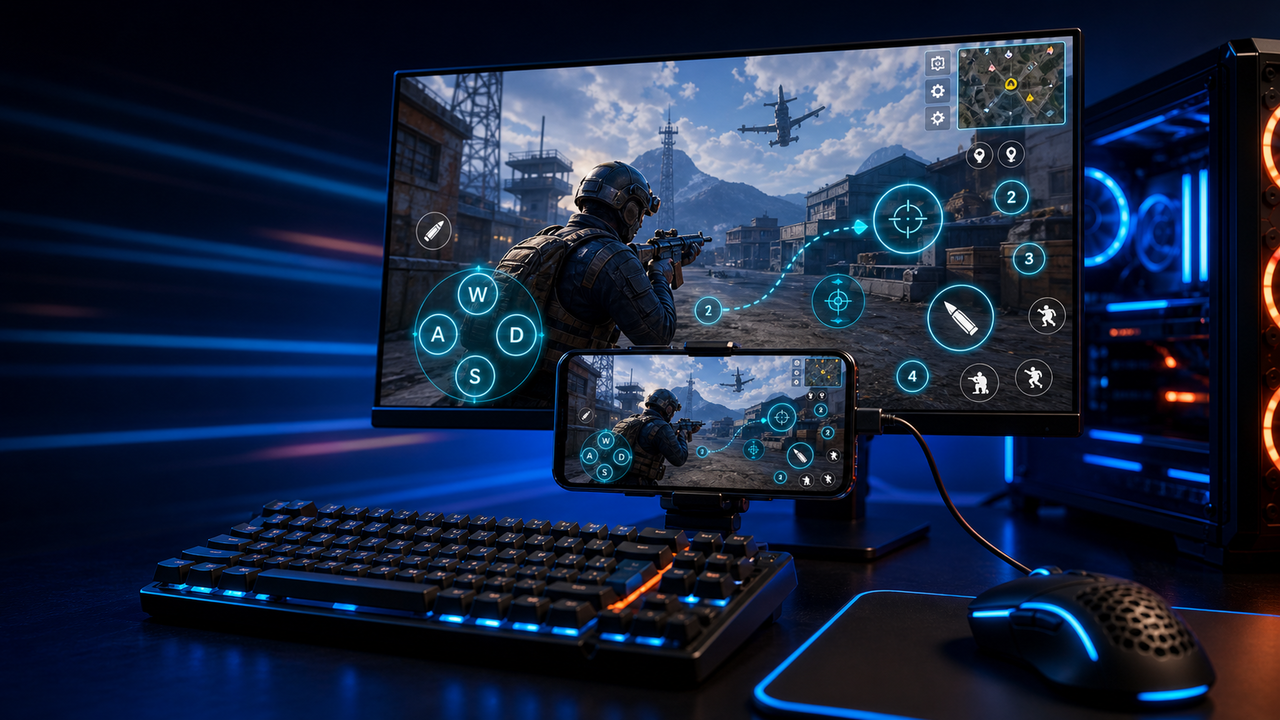
Keyboard and mouse key mapping
Turn touch controls into a PC-style layout for movement, aiming, firing, skills, camera, backpack, and common game actions.
Mobile games on PC, powered by Android devices and emulators
Mirror Android devices and emulators to Windows or macOS, then use keyboard, mouse, gamepad, and custom key mapping for supported mobile game workflows.
LaiCai
A larger screen, physical controls, and custom layouts can make long sessions more comfortable while PUBG Mobile, Free Fire, COD Mobile, Mobile Legends, Roblox, and other games run on Android devices or emulators.
Pasos
Connect your phone, open the game, then tune the controls for your own play style.
Install LaiCai Screen Mirroring on your Windows PC or Mac.
Connect the Android phone by USB or a supported Wi-Fi workflow.
Open PUBG Mobile, Free Fire, COD Mobile, Mobile Legends, Roblox, or another supported game on the phone.
Mirror the phone screen to the computer workspace.
Drag key-mapping controls onto movement, camera, fire, backpack, skill, and action areas.
Test the layout, adjust sensitivity, then save the mapping for the next session.
Flujo de trabajo
Turn touch controls into a PC-style layout for movement, aiming, firing, skills, camera, backpack, and common game actions.
The game keeps running on your Android device or emulator while LaiCai Screen Mirroring gives you a larger PC or Mac display for daily play and tutorials.
Capture screenshots, record short clips, and keep reusable control layouts for PUBG Mobile, Free Fire, COD Mobile, Mobile Legends, and Roblox.
Comparación
Bueno para entornos virtuales de Android y muchos juegos.
LaiCai es útil cuando esos entornos necesitan control de escritorio, key mapping, grabación u operaciones multiobjetivo.Bueno para usuarios técnicos que desean un espejo liviano.
LaiCai agrega un flujo de trabajo visual del producto, mapeo de claves, grabación y grupos de dispositivos.Bueno cuando no es necesario que el dispositivo sea local.
LaiCai se centra en dispositivos Android y emuladores locales controlados desde PC o Mac.Preguntas frecuentes
LaiCai Screen Mirroring is useful for players who want computer controls for Android devices and supported emulators.
Sí. LaiCai es compatible con Windows y macOS.
Puedes usar key mapping en flujos de juego compatibles mientras el juego se ejecuta en un dispositivo Android o emulador compatible.
Sí. LaiCai admite layouts de teclado, ratón y mando.
Sí. LaiCai incluye grupos de dispositivos y flujos multi-teléfono.
LaiCai Screen Mirroring is useful for players who want computer controls for Android devices and supported emulators.