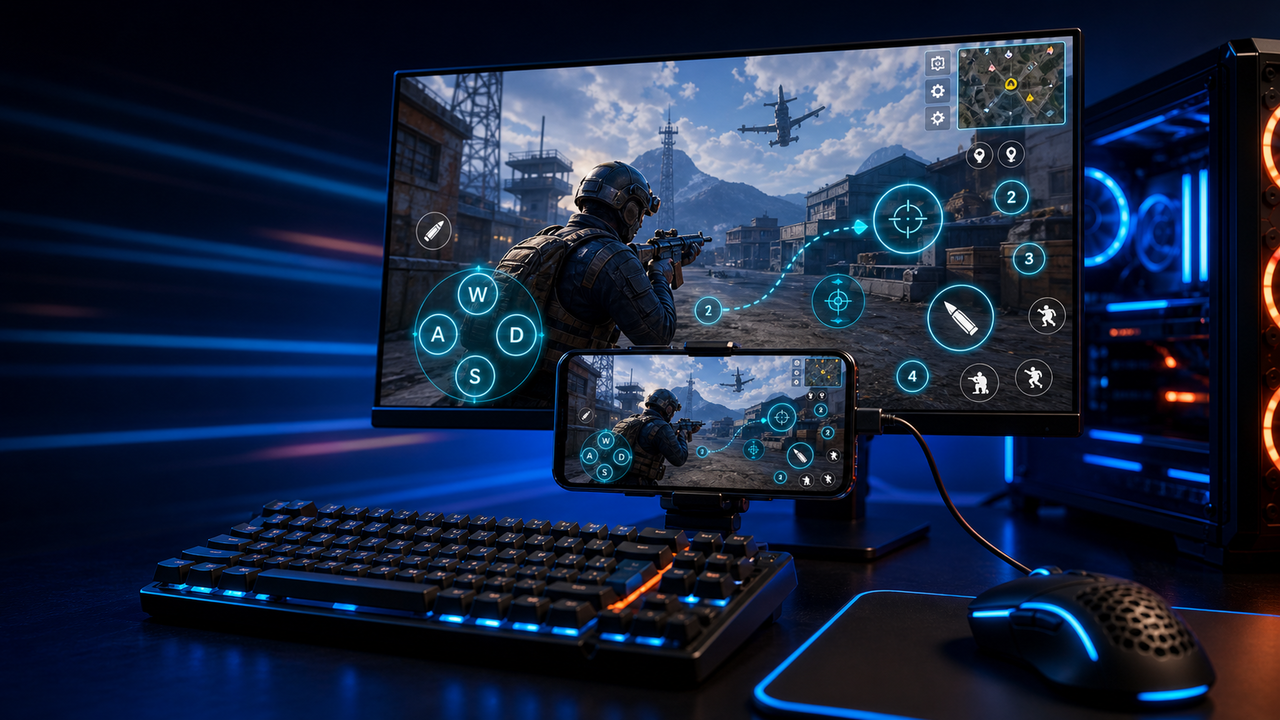
Keyboard and mouse key mapping
Turn touch controls into a PC-style layout for movement, aiming, firing, skills, camera, backpack, and common game actions.
Mobile games on PC, powered by Android devices and emulators
Mirror Android devices and emulators to Windows or macOS, then use keyboard, mouse, gamepad, and custom key mapping for supported mobile game workflows.
LaiCai
A larger screen, physical controls, and custom layouts can make long sessions more comfortable while PUBG Mobile, Free Fire, COD Mobile, Mobile Legends, Roblox, and other games run on Android devices or emulators.
Kroki
Connect your phone, open the game, then tune the controls for your own play style.
Install LaiCai Screen Mirroring on your Windows PC or Mac.
Connect the Android phone by USB or a supported Wi-Fi workflow.
Open PUBG Mobile, Free Fire, COD Mobile, Mobile Legends, Roblox, or another supported game on the phone.
Mirror the phone screen to the computer workspace.
Drag key-mapping controls onto movement, camera, fire, backpack, skill, and action areas.
Test the layout, adjust sensitivity, then save the mapping for the next session.
Przepływ pracy
Turn touch controls into a PC-style layout for movement, aiming, firing, skills, camera, backpack, and common game actions.
The game keeps running on your Android device or emulator while LaiCai Screen Mirroring gives you a larger PC or Mac display for daily play and tutorials.
Capture screenshots, record short clips, and keep reusable control layouts for PUBG Mobile, Free Fire, COD Mobile, Mobile Legends, and Roblox.
Porównanie
Dobry dla wirtualnych środowisk Androida i wielu gier.
LaiCai jest przydatny, gdy te środowiska wymagają sterowania z desktopu, key mapping, nagrywania lub operacji na wielu celach.Dobre dla użytkowników technicznych, którzy chcą lekkiego lustra.
LaiCai dodaje wizualny przepływ pracy produktu, mapowanie klawiszy, nagrywanie i grupy urządzeń.Dobrze, gdy urządzenie nie musi być lokalne.
LaiCai koncentruje się na lokalnych urządzeniach Android i emulatorach sterowanych z PC lub Mac.Często zadawane pytania
LaiCai Screen Mirroring is useful for players who want computer controls for Android devices and supported emulators.
Tak. LaiCai obsługuje Windows i macOS.
Możesz używać key mapping w obsługiwanych procesach gier, gdy gra działa na urządzeniu Android lub obsługiwanym emulatorze.
Tak. LaiCai obsługuje układy klawiatury, myszy i kontrolera.
Tak. LaiCai zawiera grupy urządzeń i workflow dla wielu telefonów.
LaiCai Screen Mirroring is useful for players who want computer controls for Android devices and supported emulators.