Standoff 2 plays a lot like a classic PC shooter, so it is no surprise that many players want to use a keyboard, a mouse, and a big monitor. Almost every guide answers with an Android emulator, and some go as far as saying there is no way to play Standoff 2 on PC without one.
There is another way. Keep Standoff 2 installed and running on your own Android phone, mirror the phone to your Windows PC or Mac with LaiCai Screen Mirroring, and control it with keyboard and mouse. This guide shows how to set it up, what Axlebolt’s rules say, and how to make the controls feel right.
Can You Play Standoff 2 on PC Without an Emulator?
Yes. There is no official Standoff 2 client for Windows or macOS, so you have two options:
- An Android emulator such as BlueStacks, LDPlayer, or MuMu installs Standoff 2 inside a virtual Android system on the PC.
- Mirroring your phone keeps Standoff 2 on your real phone. The PC shows the phone screen and turns your keyboard and mouse input into touches on it.
The second option does not install anything inside the game or change the game files. It is the same phone, account, and game install you already use. For other titles, see how to play Android games on PC with your phone.
What Axlebolt’s Rules Say
Standoff 2’s code of conduct bans using or sharing software built to hack the game, such as cheats and hacks, with penalties from a warning up to a permanent ban. It does not mention emulators, keyboards, or mice.
Axlebolt has also said it does not support emulators or fix emulator issues, because PC controls would give an unfair advantage over mobile players. In December 2025 the team said it is building a tool that could split the player pool by platform. That means the rules for PC-style play can change, so keep these points in mind:
- Never use macros, scripts, auto-fire, or anything that aims or shoots for you. In Standoff 2, use simple mappings where each key does what your finger would do, and leave LaiCai’s macro and multi-step mappings switched off.
- Before playing ranked or tournament matches, check Standoff 2’s latest official announcements.
- We cannot promise how Axlebolt will treat keyboard and mouse play in the future. Decide for yourself before using it on an account you care about.
Emulator vs. Mirroring Your Own Phone
| Android emulator | Mirroring your phone with LaiCai | |
|---|---|---|
| Where Standoff 2 runs | A virtual Android system on the PC | Your real Android phone |
| What the PC needs | Enough power to run the game | Enough to display the phone screen smoothly |
| Game install and settings | A second install that you sign in to again | The same install, sensitivity, and HUD you already use |
| Official support | Not supported by Axlebolt | The game runs on a supported phone |
How to Set Up Standoff 2 on PC with Your Phone
- Install LaiCai Screen Mirroring on your Windows PC or Mac, and update Standoff 2 on your Android phone.
- Connect the phone with a USB data cable. Turn on USB debugging in developer options and allow the computer when the phone asks. The Android connection guide walks through it.
- Open the mirrored screen and launch Standoff 2 in landscape.
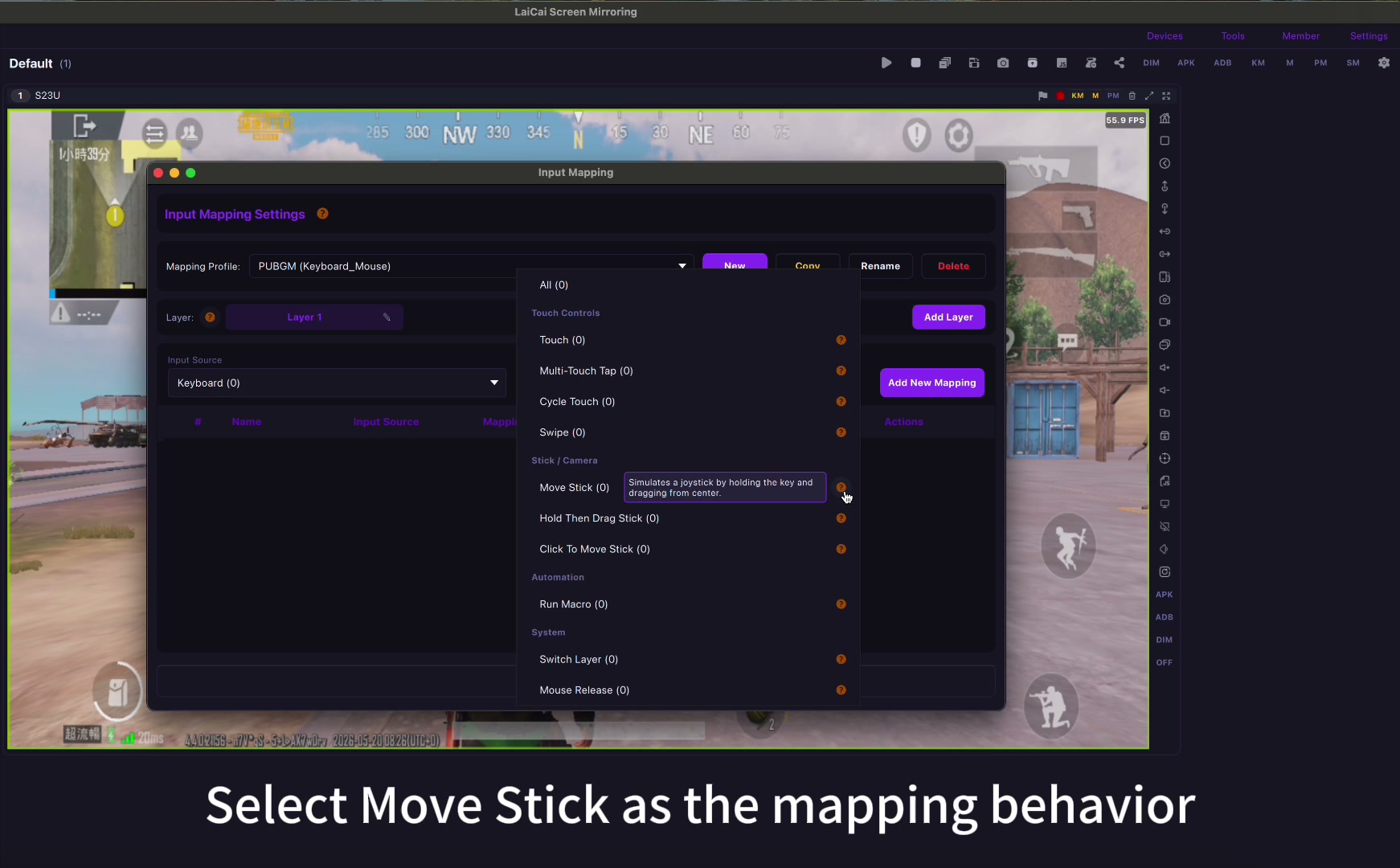
- Map movement: use Move Stick to place W, A, S, D over the movement joystick.
- Map the camera: use Mouse Look over the area you swipe to look around, so moving the mouse turns your view.
- Map the buttons: fire, aim, jump, crouch, reload, weapon slots, grenades, and the interact button for planting or defusing the bomb.
- Test in a practice match before playing ranked: walk, turn, aim, fire, switch weapons, and plant the bomb.
A Starter Standoff 2 Keyboard and Mouse Layout
If you have played Counter-Strike or another PC shooter, this layout will feel familiar. Change anything that does not suit you.
| Action | Suggested key |
|---|---|
| Move | W / A / S / D |
| Look around | Mouse movement |
| Fire | Left mouse button |
| Aim / scope | Right mouse button |
| Jump | Space |
| Crouch | C |
| Reload | R |
| Primary / pistol / knife | 1 / 2 / 3 |
| Grenade | 4 or G |
| Plant / defuse bomb | E |
| Buy menu | B |
| Free the mouse cursor | Esc |
LaiCai places each key directly over the button on your phone screen, so the layout should match your own Standoff 2 HUD. If you move buttons in the game settings later, update the mapping too.
Make It Feel Smooth: Connection, Sensitivity, and Heat
Use USB for matches. A cable gives steadier latency than Wi-Fi, which matters in a fast shooter. See USB vs Wi-Fi Android screen mirroring for why.
Tune mouse look in small steps. If your view spins too fast, lower the mouse sensitivity in LaiCai first, then fine-tune the in-game camera sensitivity. Test scoped weapons separately, because a setting that feels right with a rifle can feel wrong with a sniper scope.
Keep the picture smooth. If the mirrored image stutters, lower the mirroring resolution, FPS, or bitrate before changing your keys. More tips are in reduce Android screen mirroring lag.
Watch phone temperature. Gaming and mirroring together warm the phone. Keep it charging on a stand or cooler and close background apps.
Record your matches. Mirroring lets you capture the phone version of the game on your PC. See record Android gameplay on PC.
FAQ
Can I play Standoff 2 on PC without an emulator?
Yes. Keep Standoff 2 on your Android phone and mirror it to your computer with LaiCai Screen Mirroring. The game runs on the phone; the computer shows the screen and sends your keyboard and mouse input.
Will I get banned for playing Standoff 2 with keyboard and mouse?
Standoff 2’s code of conduct bans cheat and hack software and does not mention keyboards or mice. Axlebolt does not support PC-style play and may split players by platform, so the rules can change. Never use macros or scripts, and check the latest announcements before ranked play.
Do I need a gaming PC?
No. The phone runs Standoff 2. The computer only needs to display the mirrored screen smoothly.
Does this work on a Mac or a laptop?
Yes. LaiCai Screen Mirroring runs on Windows and macOS, including laptops.
Can I use the same setup for other shooters?
Yes. The steps are similar for PUBG Mobile; see how to play PUBG Mobile on PC with a real Android phone.
Official Standoff 2 Sources
Standoff 2 official website; Standoff 2 code of conduct; Axlebolt on emulators and platform splitting (December 2025); Standoff 2 on Google Play.