When you control an Android phone from a PC, you can do more than enlarge the phone screen. Screen mirroring and computer input let you demonstrate apps, reproduce bugs, assist someone remotely, record tutorials, and run authorized tests. A keyboard and mouse can also make text entry and switching between desktop work and phone tasks easier. This guide explains the difference between viewing and controlling a phone, the available connection methods, and how to choose and set up a suitable tool.
1. Screen mirroring and phone control: what is the difference?
Screen mirroring displays the phone's live picture on another screen. It is useful for watching, presenting, or recording, but viewing the picture does not necessarily let you interact with the phone. Phone control adds an input path: keyboard, mouse, or touchpad actions on the computer are sent back to the Android device. Together, these capabilities let you see an app and operate it from the same workspace.
If you only need to show an app, start with the Android screen mirroring guide. If you need to type, scroll, or select items, confirm that the chosen tool supports control on your particular phone.
2. Connection methods and how they work
Common connections use USB with ADB, or a network connection over Wi-Fi or the internet. Typically, a service on the phone captures and encodes the screen; the computer decodes the picture and sends input back. The method and permissions depend on the tool.
- ADB and a device-side server: scrcpy uses this approach for USB or TCP/IP connections and does not require root access.
- Manufacturer features: Samsung DeX and Huawei Multi-Screen Collaboration offer device-specific integration. Check the exact phone, computer, and software versions before choosing them.
- Remote-support software: TeamViewer and AnyDesk can support connections across networks. Vysor also offers phone viewing and control, with features that depend on its edition and setup.
- Input permissions: some tools use Android accessibility services; authorized developer workflows may use
adb shell input. Grant only the access needed for the intended task.

3. Choosing a tool for the task
scrcpy is free and open source, and suits local viewing, control, and recording when you are comfortable with setup. Vysor provides another desktop interface for using a phone. For support over the internet, assess TeamViewer or AnyDesk against your device requirements, access controls, and licensing needs. Support for full control can differ from support for viewing the screen.
Older comparisons also mention Mobizen and Samsung DeX. Check the current availability of the specific product you need: Samsung states that DeX for PC is not supported on One UI 7 or later. A supported DeX desktop on an external display is a different setup. For a LaiCai Screen Mirroring desktop workflow, review how to use an Android phone on a PC with LaiCai Screen Mirroring.
4. Permissions and safe access
A computer authorized for USB debugging can perform powerful actions on the phone. Do not approve an unfamiliar computer simply because a connection prompt appears.
- Authorize trusted computers only. When access is no longer needed, use the phone's developer options to revoke USB debugging authorizations.
- For remote support, check the provider's encryption, authentication, and session-permission settings. Enable two-factor authentication where available.
- Review accessibility and other requested permissions. Verify the application's source and remove access that the task no longer requires.
5. What affects performance and delay?
Responsiveness depends on the phone's video encoder, the computer's decoder, the connection, resolution, bitrate, and other running applications. USB often provides a useful baseline because it avoids Wi-Fi congestion, but it cannot guarantee the lowest delay on every device. A stable local network can also work well.
- Try a lower resolution or bitrate if the stream stutters. Compare the effect on motion and text readability.
- Test a direct USB connection with a reliable data cable before diagnosing more complicated network problems.
- On Wi-Fi, try a less congested band, such as 5 GHz when supported, and check signal strength and router load.
6. Practical uses for a connected phone
- App development: observe the live interface, enter text, reproduce a bug, and capture screenshots or recordings alongside development tools.
- Customer support: with permission, guide someone through settings or demonstrate a workflow. Remote control must be supported by the chosen tool and device.
- Teaching and presentations: show an app on a larger screen, record a tutorial, or include phone footage in a live stream.
- Test automation: use authorized ADB scripts or a testing framework to repeat checks and collect screenshots from test devices.
- Device management: organizations can combine suitable management software with enrollment, policies, and maintenance procedures. Mirroring alone is not an MDM system.
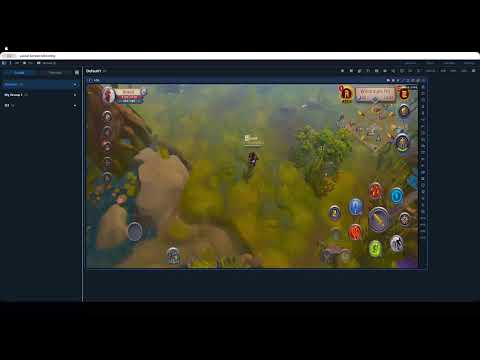
7. Setup example: scrcpy over USB, then Wi-Fi
- On the phone, enable developer options and USB debugging.
- Install ADB and scrcpy on your Windows, macOS, or Linux computer using the official scrcpy instructions.
- Connect the phone with a data cable, unlock it, and approve the debugging prompt. Run
adb devicesand confirm that it is authorized. - Run
scrcpy. Check that the picture matches the phone, then test typing, scrolling, and selecting an item. - For the traditional wireless ADB method on a trusted local network, keep USB connected while running
adb tcpip 5555, then useadb connect <PHONE_IP>:5555. Replace the placeholder with the phone's local IP address. Once connected, disconnect the USB cable and run scrcpy again.
Wireless debugging on newer Android versions can instead use pairing; follow the Android ADB documentation for your device. Do not expose debugging ports to the public internet. Disconnect wireless debugging after use.
| Task | Typical tools | Connection | Benefit | Consideration |
|---|---|---|---|---|
| Development and debugging | scrcpy; Android Studio and Logcat for diagnostics | USB / ADB | View, control, and record while investigating an app | Debugging authorization is required |
| Remote support | TeamViewer, AnyDesk, or a suitable Vysor sharing setup | Internet / service connection | Assist someone on another network | Check device support, permissions, and fees |
| Presentations and recording | scrcpy and OBS window capture | USB / Wi-Fi | Include the phone screen in a recording or stream | Higher quality can require more resources |
| Automated testing | ADB scripts, Appium | USB / Wi-Fi | Repeat tests across authorized devices | Maintain scripts and stable connections |
| Enterprise device management | An organization-approved MDM platform | Network / device enrollment | Apply device policies and manage access | Deployment and administration require planning |
8. Tuning the everyday workflow
- For development or streaming, compare a lower resolution, such as 720p, and a moderate bitrate, such as 2–5 Mbps, where the tool allows it. These are trial settings, not a measured optimum for every phone.
- Use a sound data cable and close unnecessary background applications if CPU or GPU contention affects the picture.
- For Wi-Fi, keep the phone and computer on a suitable trusted network and avoid congested access points. Check whether the network allows devices to communicate.
- If frequent typing matters, test keyboard shortcuts and clipboard behavior. Some tools also support APK installation or file transfer; verify those features separately.
9. Consent and privacy
Before assisting another person, agree on what may be viewed or controlled and how long access should last. Obtain permission before recording, and avoid collecting sensitive information that is irrelevant to the task. Organizations should apply their data-protection, retention, and access policies to recordings and remote sessions.
10. A checklist for choosing your setup
The benefit of computer-based phone control is a larger workspace where actions can be demonstrated, repeated, and recorded. Choose around the actual task rather than the longest feature list.
- Need responsive local control? Start by testing USB and scrcpy, or a suitable desktop mirroring application.
- Need support across networks? Check TeamViewer or AnyDesk compatibility, authentication, and session permissions.
- Need to handle private information? Agree on consent, limit access, and define how evidence is stored.
- Need repeated testing or fleet management? Assess ADB scripts, Appium, or an MDM platform according to the task.
Start with one phone and a short, observable check: display its screen, enter text, scroll, and disconnect. Once that works, you can bring the phone into a desktop workflow while keeping permissions and device identity clear.